Where do you update an Xtream Codes connection?
Edit connection details in the LynoTV app on Android, Android TV or Fire TV. The website displays the names of synced playlists and lets you assign them to profiles. It does not provide a form to change servers or credentials.
LynoTV is a player and supplies no Xtream Codes access. Only use connection details for a service you are authorised to access.
Prepare the new details
Confirm the server address, username and password with your service. Updating your LynoTV account cannot fix an expired or unavailable content service. Never include connection details in screenshots or support messages.
Edit the playlist in the app
- Open playlist management in LynoTV and select the relevant Xtream source.
- Choose the edit action. If owner verification is requested, complete it directly on your device.
- Correct the server, username and password fields, then save.
- Check the connection and play an item your service makes available.
On a television, use the directional buttons and OK. On a phone or tablet, use touch controls. Check the source name before editing its details.
Understand Cloud sync and the website
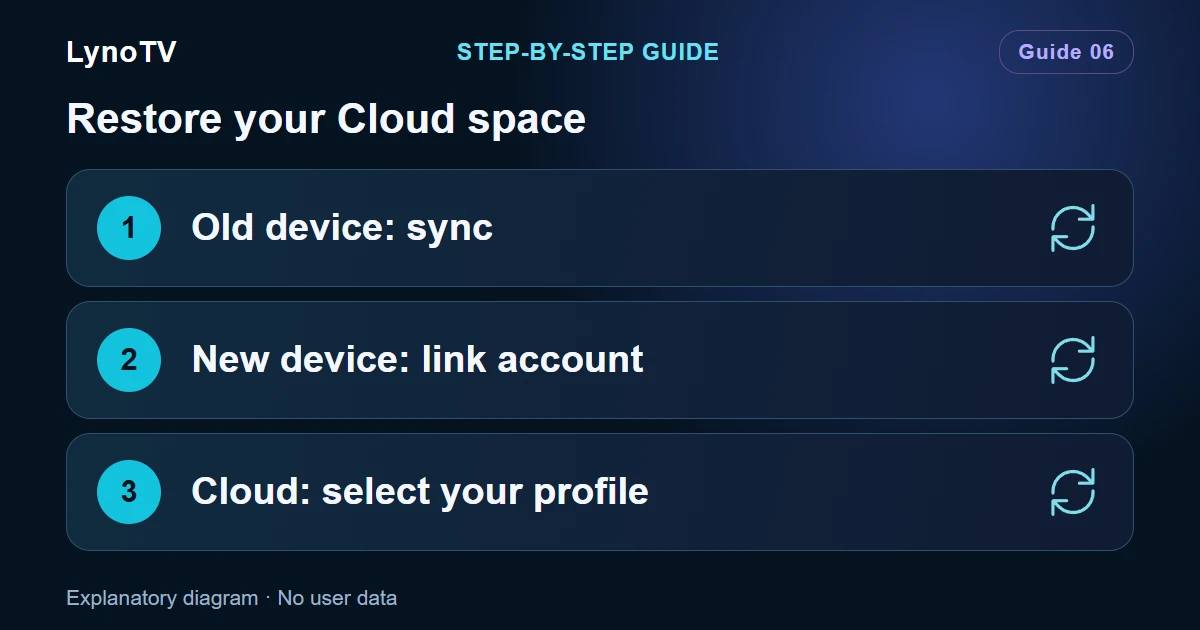
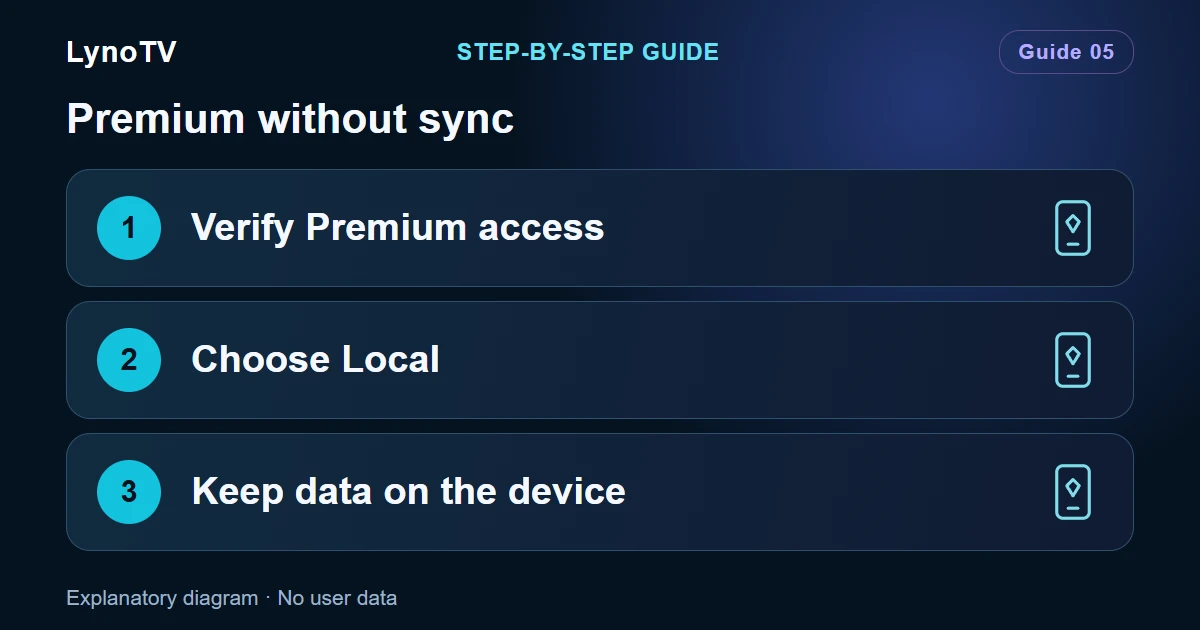
In local mode, the change affects the device you are using. With Premium and your consent to synchronization, connection details can be backed up in encrypted form on your account. LynoTV does not copy the catalog or videos to its Cloud.
In the website member area, assign the synced playlist to the intended profile. A profile can have no playlist or one playlist, and several profiles can share the same playlist. Assignment does not replace editing connection details in Android.
If the connection still fails
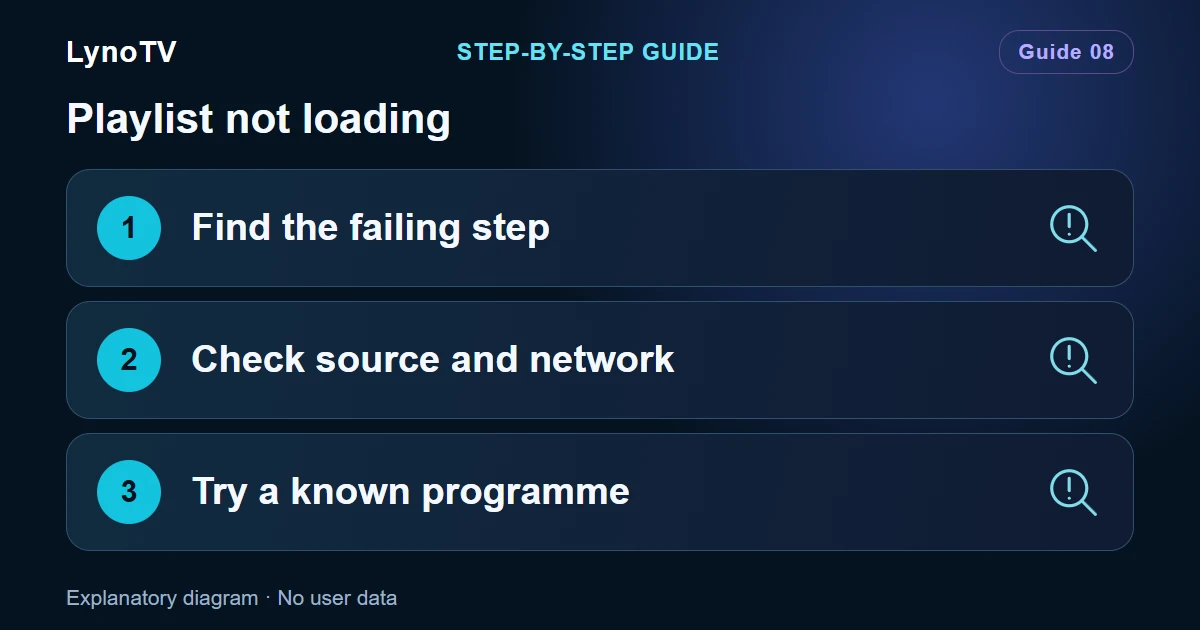
Check the network, the connection details and your service’s availability. If the app reports a session error or requests consent, follow its instructions. Do not recreate all your profiles to fix content access.
Read the Xtream Codes setup guide or the playlist loading checks.