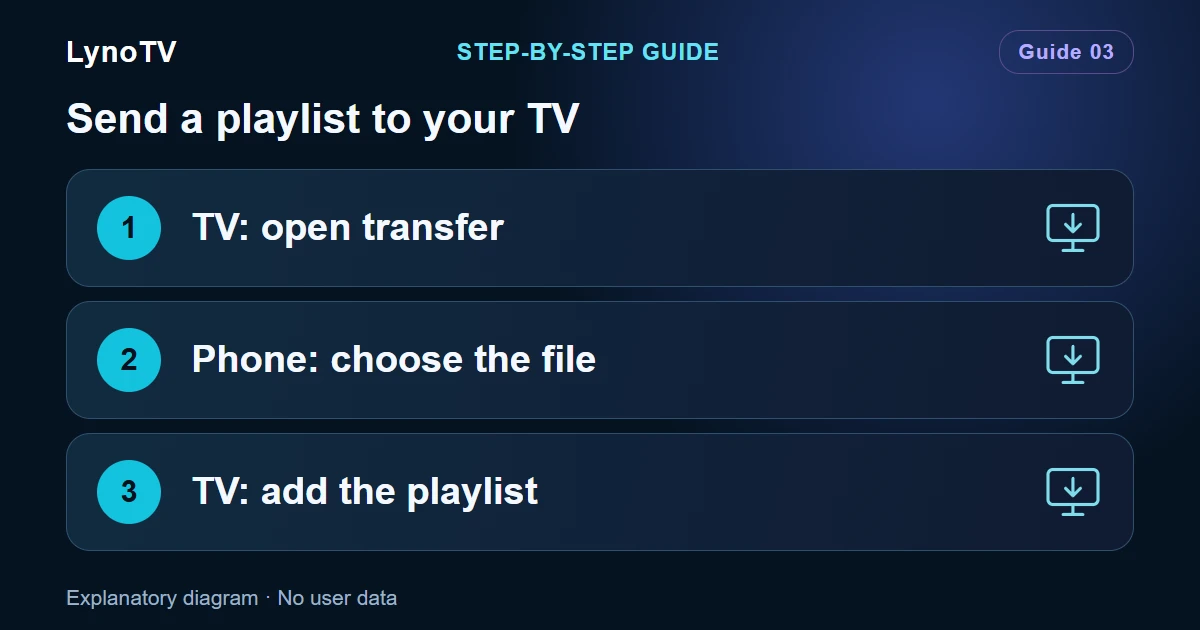
Some versions of LynoTV offer local transfer from a phone or computer. This guide applies only to versions that show Transfer an M3U playlist after you select Browse. If that screen does not appear, use an M3U URL or a compatible Android file picker.
Screenshots of the LynoTV Android app. Layout and labels may vary by device, language and version.
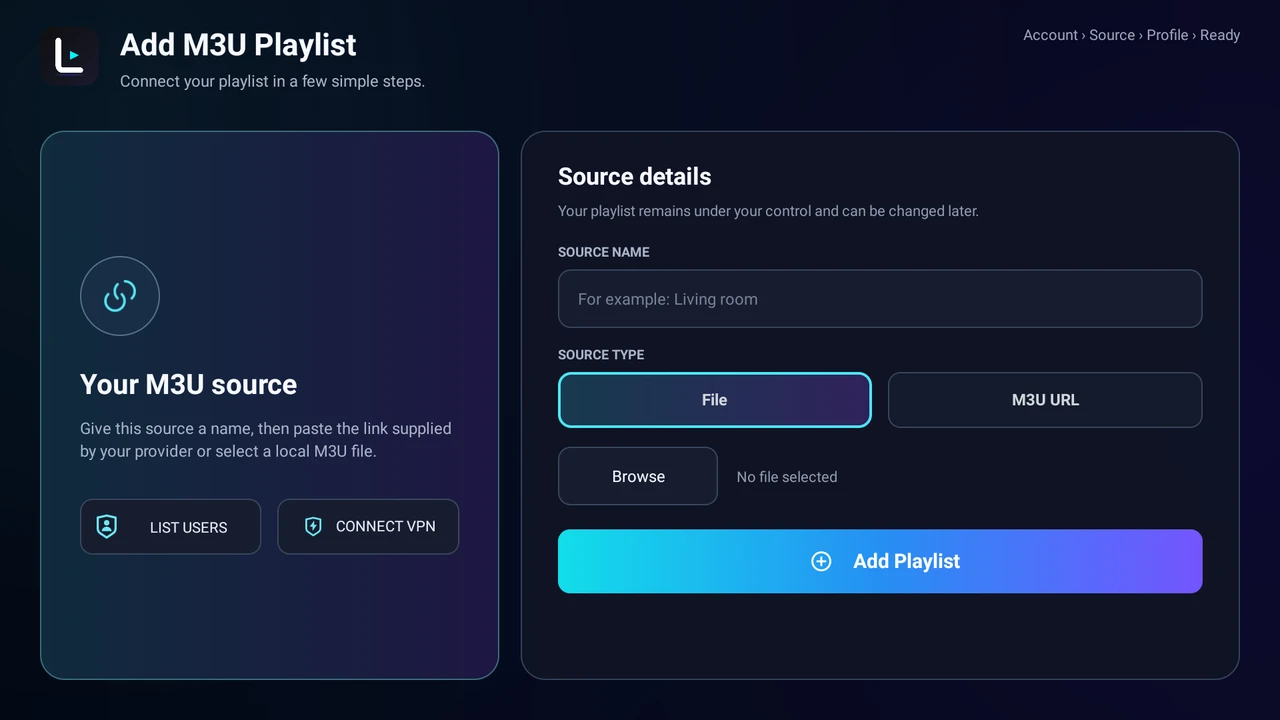
The Android TV File screen provides the Browse button for choosing a file. Interface in English. The options that follow depend on your LynoTV version and the apps installed on the TV.
If integrated transfer is not available in your version, use an M3U URL or a compatible Android file picker. The transfer steps below apply to versions that offer this feature.
Prepare both devices
Use a recent version of LynoTV. Connect the TV and the device holding the file to the same private network, using Wi-Fi or Ethernet. A guest network may prevent devices from communicating even if the network names look similar.
The file must be an M3U or M3U8 playlist. The transfer screen allows up to 256 MiB. This is a file-size limit, not a channel count.
Send the file
- On the TV, open the M3U playlist form, select File, then Browse.
- Continue only if Transfer an M3U playlist appears. Otherwise, return to URL import or use a compatible file picker.
- Leave that screen open. On your other device, scan the QR code or enter the displayed address exactly in a browser.
- Choose your file and select Send to my TV.
- Once receipt is confirmed, return to the TV. Check the filename, name the source and finish adding the playlist.
Receiving the file and importing it into the library are separate steps. Let LynoTV finish analysing the playlist afterwards.
If the transfer page will not open
Check that the transfer screen is still open and that both devices remain on the same network. The link expires after 10 minutes. Choose the new-transfer option to start another session.
A VPN or guest-network isolation may block the local connection. Use a trusted private network that permits communication between devices. You do not need to open a port on your router.
What gets transferred?
The file travels directly from your browser to LynoTV on the TV. This is not a Cloud backup. Keep the original file in case you need to import it on another device.
If you have an address rather than a file, use M3U URL import instead.
Cover image: Explanatory diagram · No user data.