Official Guide
How to Install & Update
How to Install & Update
LynoTV
Follow these simple steps to install or update the LynoTV app directly on your Android TV, Google TV, or Amazon Firestick.
1
Get the Downloader App
To install LynoTV easily, you need the "Downloader" application, which allows you to download files directly from the internet to your TV.
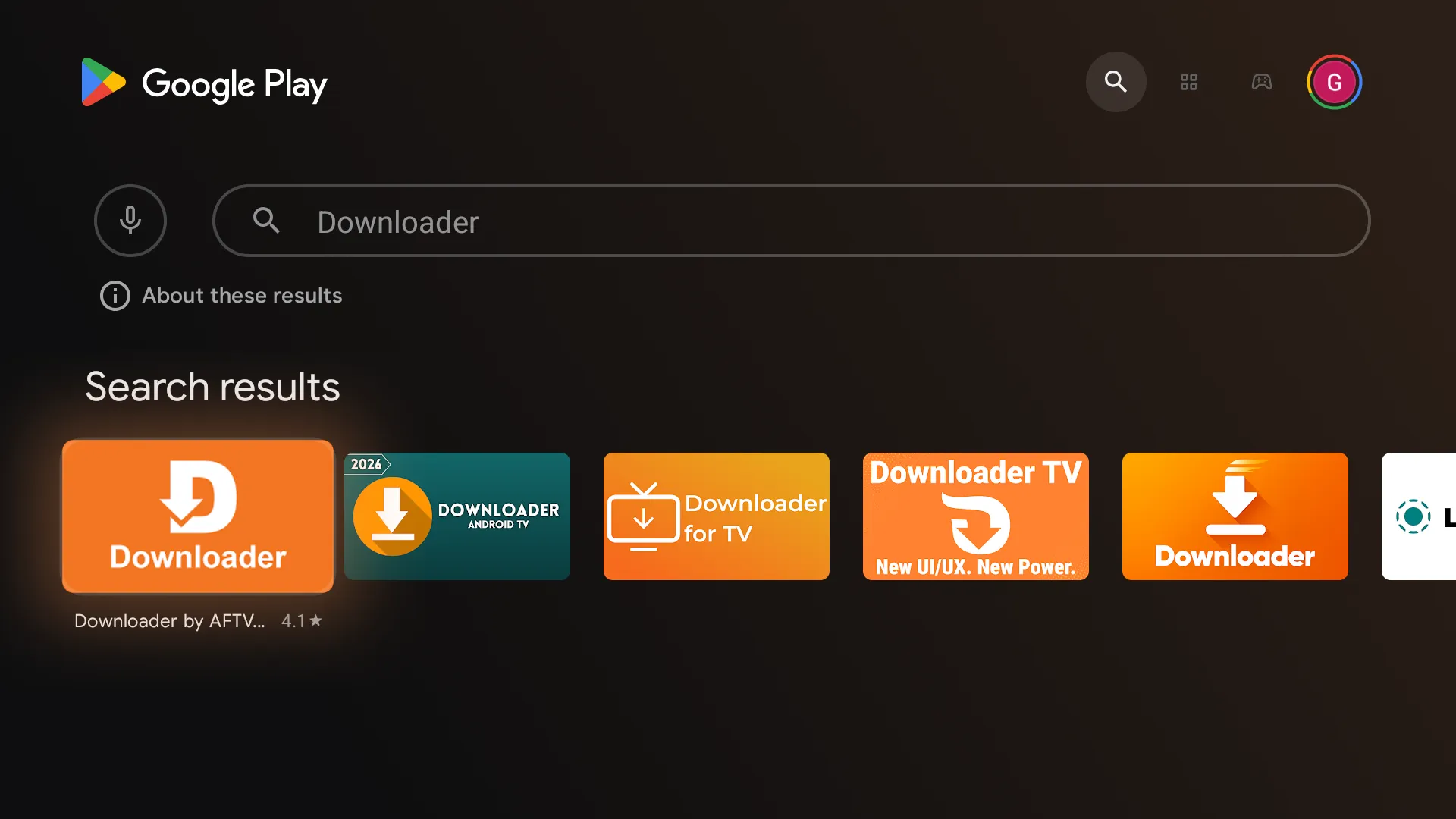
- Open your TV's app store (Google Play Store or Amazon Appstore).
- Go to the Search function.
- Type Downloader.
- Select the app with the orange icon and click Install.
2
Enter the Download Code
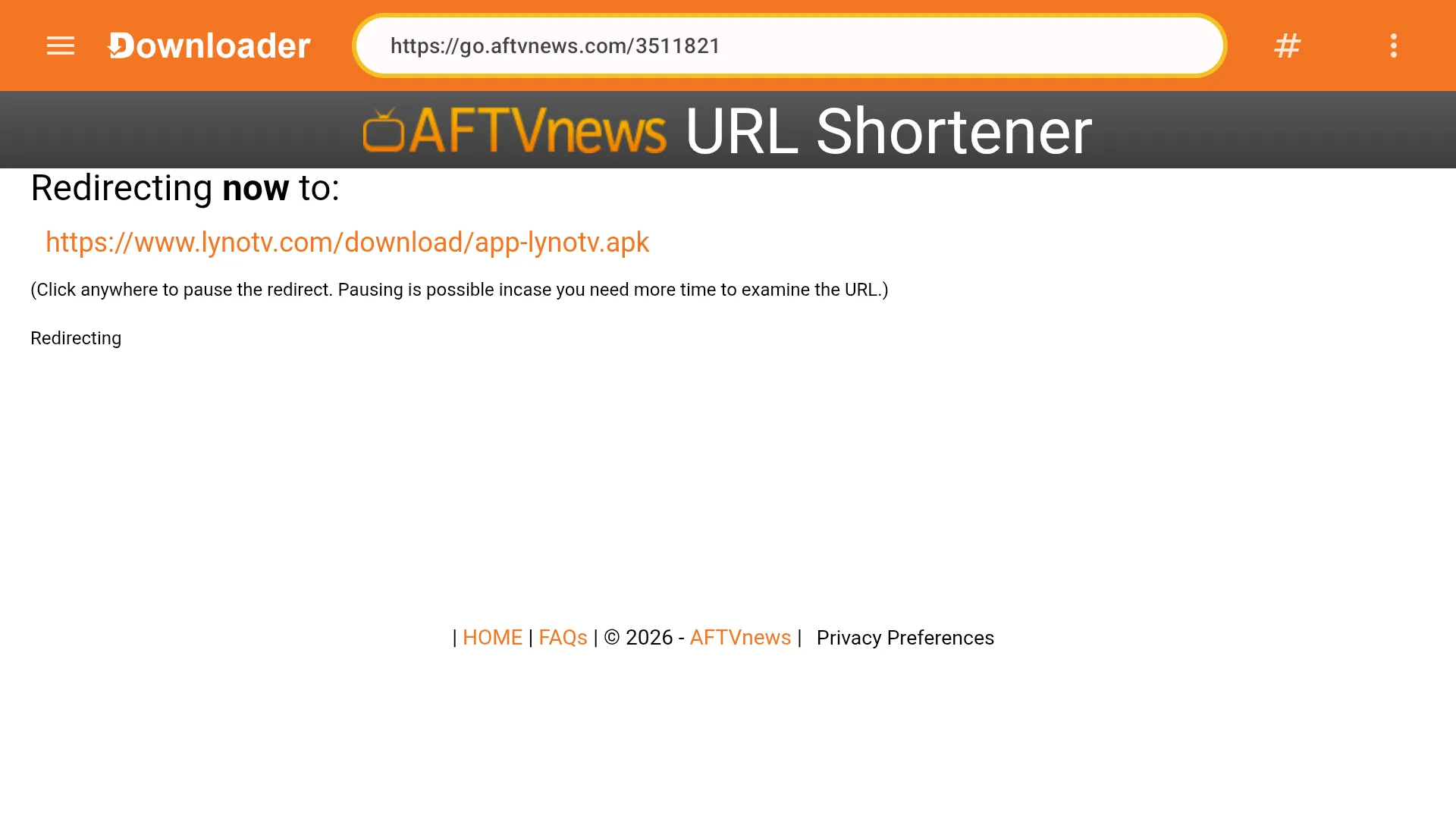
Once Downloader is installed, open it. You will see a search box where you can type a URL or a short code.
- Open the Downloader app.
- Select the URL/Search box.
- Enter the direct LynoTV code:
3511821
Click Go or Enter on your remote.
3
Install & Enjoy
After clicking Go, the Downloader app will connect to our servers and automatically download the latest version of LynoTV.
- Wait a few seconds for the download to finish.
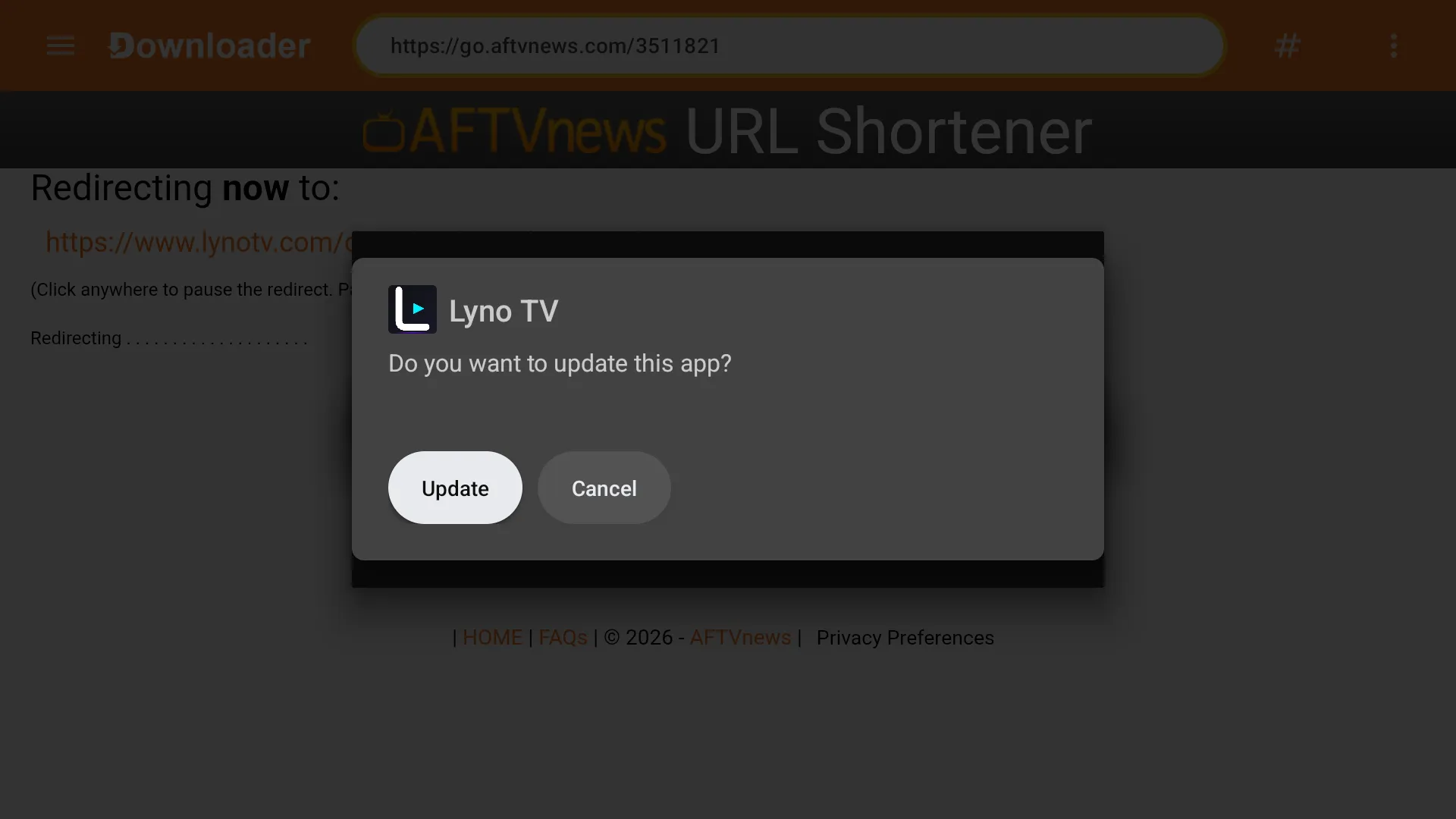
- A prompt will appear. Click Install (or Update if you already have it installed).
- Once installed, click Open to launch LynoTV.
- Add your playlist and enjoy 4K streaming!
Note for Firestick users: You may need to enable "Apps from Unknown Sources" in your TV's Developer Options before installing.